How to make your own Lightroom preset, properly
Build a preset that survives contact with other photographs: what to include, what to leave out, and how to make a DNG version for mobile.
11 October 20267 min read
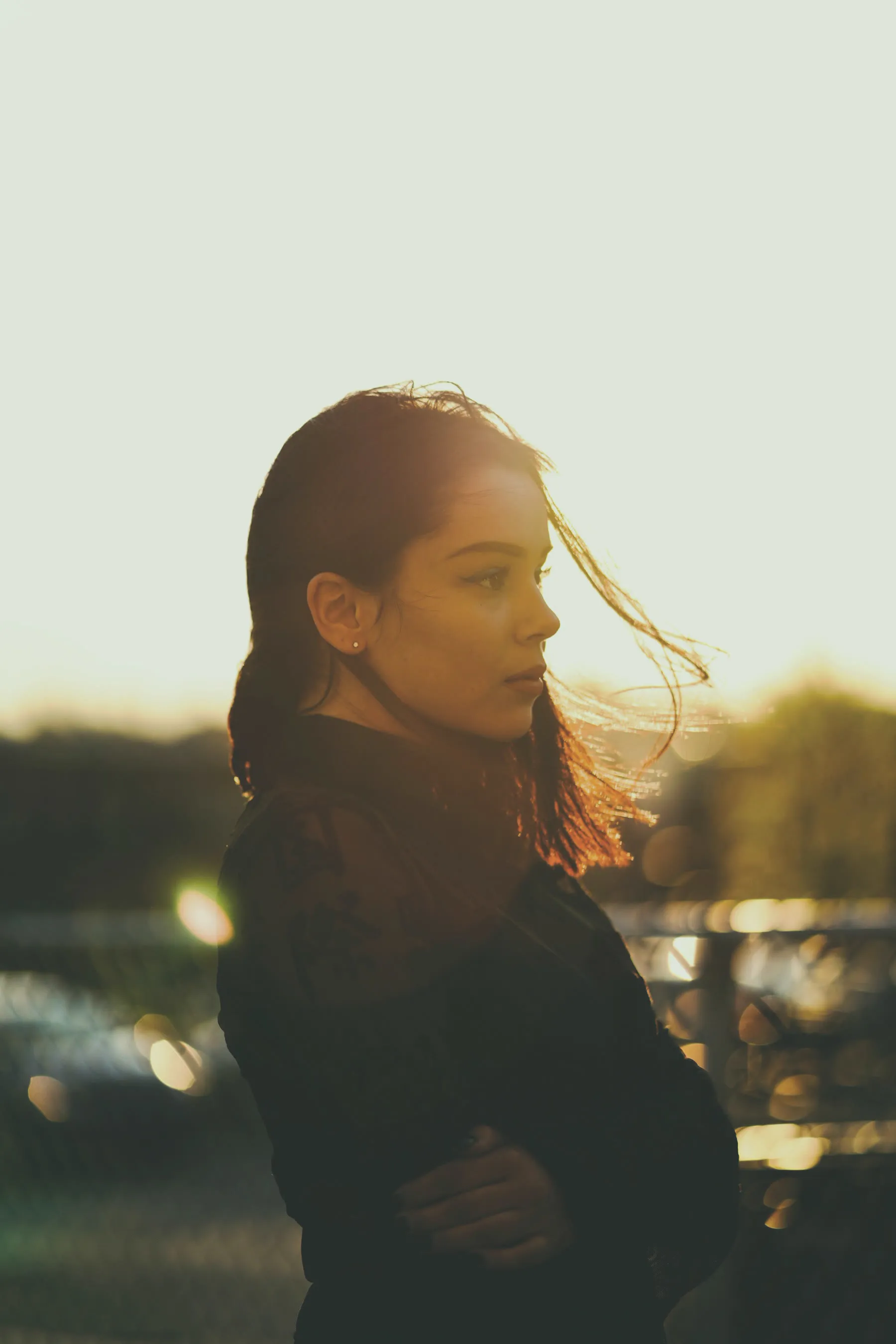
Making a preset is easy. Making one that works on photographs other than the one you built it on is the actual skill, and it comes down almost entirely to what you leave out.
Build it on a representative frame
Not your best photograph. A typical one: correctly exposed, neutral white balance, ordinary light, a subject you shoot often.
Building a grade on an exceptional frame produces a grade that only works on exceptional frames.
Grade in this order
- Tone curve first. This is where the character lives. Lift the black point for a matte look, drop the quarter-tone for contrast, decide what the highlights do.
- Colour channels next. Individual red, green, blue curves are what separate a grade from a contrast adjustment. Blue in the shadows reads as cool or as film; red through the midtones reads as warm skin.
- HSL sparingly. Targeted hue shifts are powerful and fragile. A heavy orange shift that flatters one skin tone will wreck another.
- Everything else barely. Clarity, texture, dehaze and vignette are per-photograph decisions dressed up as grade decisions.
What to exclude when you save
This is the part that matters. When you save, Lightroom offers a checklist. Untick:
- Exposure, unless every photo you own is identically lit.
- White balance, same reason, more so.
- Crop, Geometry, Transform, these describe one photograph’s shape.
- Spot removal, masking, these describe one photograph’s content.
- Lens corrections, these describe one lens.
- Noise reduction and sharpening, these describe one ISO.
Tick tone curve, colour grading, HSL, calibration, and basic panel items other than exposure and white balance.
A preset that includes exposure will look right on one photo and wrong on every other, which is exactly the complaint people have about bought presets. Usually the seller left exposure ticked.
Test it honestly
Apply it to ten photographs you did not build it on. Specifically include:
- one underexposed by a stop
- one shot in shade
- one with a face
- one with a strong single colour
- one black and white candidate
If it survives all five, it is a real preset. If it only works on the frame you made it on, it is an edit.
Making the DNG version
If you want it on a phone, or want to share it with anyone on the free Lightroom app, you need a DNG.
- Take a small, plain photograph, a wall, a sky, anything with a range of tones and no distracting subject.
- Apply your preset to it.
- Export as DNG (File, Export, Image Format: DNG).
- That file now carries your settings. Anyone can import it, copy its settings, and paste them.
Keep the carrier photo boring. A dramatic carrier makes people think they are buying that photograph.
A word on selling them
If you intend to sell presets, ship both formats. The single biggest source of refund requests in this business is a buyer on a free mobile app holding an XMP file they cannot open.
We write about that at length in XMP vs DNG.
Written by the Graded By colour lab. Every pack ships both the desktop and the mobile preset file, plus this guide in print.